Five Image Fixes That Actually Speed Up Your Website, Ranked by Impact
If your website feels slow to load, there's a good chance a single image is the reason. On most websites, the biggest image on the page, usually a banner, hero photo, or featured image, is what Google's Core Web Vitals system measures as your "Largest Contentful Paint," or LCP: the moment the main thing a visitor came to see actually finishes appearing on screen. Google calls anything under 2.5 seconds good and anything over 4 seconds poor, and images are the reason most sites miss that mark.
Here are the five changes that move that number the most, in order of how much they actually matter, so you know where to start.
1. Stop shipping JPG or PNG as your only format
This is the single biggest lever, and it's also the easiest to pull. A typical unoptimized hero photo, shot on a phone or exported at full quality, lands somewhere around 1.8 to 2.4 MB as a JPG or PNG. Converted to WebP at a sensible quality setting, that same image typically comes down to somewhere in the 280 to 350 KB range, an 85% cut or more, with no visible difference to a normal viewer. AVIF can push it further still, often into the 160 to 210 KB range.
The real-world effect: a 2.2 MB hero image on a typical mobile connection takes somewhere around 1.5 to 2.5 seconds just to finish downloading, before the browser has even rendered it, which alone is enough to push LCP into the red. Drop that same image to 280 KB and the download time falls to a few tenths of a second, moving LCP comfortably into the green zone on its own, before touching anything else on the page.
2. Make sure your hero image isn't lazy-loaded, and tell the browser to prioritize it
This one costs nothing in file size and gets skipped constantly. Lazy loading, the technique that delays offscreen images until a visitor scrolls near them, is genuinely useful for images further down the page. Applied to the hero image, it does the opposite of what you want: it tells the browser to wait on the exact image LCP is measuring.
The fix has two parts. First, make sure the hero image is never marked loading="lazy". Second, add fetchpriority="high" to that same image tag, which tells the browser to fetch it ahead of less important resources on the page. Industry data suggests only a small fraction of sites currently use this attribute, even though it's supported in every modern browser and can shave a meaningful chunk of time off LCP on its own, essentially for free.
3. Serve the right size image for the actual screen, not just one giant version for everyone
A 1600-pixel-wide hero image looks great on a desktop monitor and is wildly oversized on a 375-pixel-wide phone screen, the browser just shrinks it down after downloading the whole thing, wasting most of the bytes you sent. This is what the srcset attribute solves: it lets you offer several sizes of the same image and lets each visitor's browser pick the one that actually matches their screen, instead of everyone downloading the desktop version.
You don't need to be a developer to understand the shape of this fix, even if implementing it takes some technical help: instead of one image file referenced everywhere, you generate two or three sizes of the same photo, and a small piece of markup tells the browser which one to grab based on screen width. Most modern website builders and CMS platforms can automate this generation step once it's set up.
4. Give every image its dimensions up front
This one isn't about LCP directly, it's about a second Core Web Vitals metric called Cumulative Layout Shift, which measures how much content jumps around while a page loads. Without explicit width and height set on an image, the browser doesn't know how much space to leave for it until the image itself arrives, so everything below it jumps down the moment it loads in. Visitors experience this as a page that seems to shift under their cursor right as they're about to click something.
The fix is simple: every image tag should specify its width and height (or use the equivalent aspect-ratio setting in your site's styling), so the browser reserves the right amount of space immediately, before a single byte of the image has downloaded.
5. Serve modern formats with a fallback, not as an all-or-nothing switch
The reason to combine formats rather than picking one format and using it everywhere is that AVIF, while it compresses further than WebP, still isn't supported in every browser and device out there. The practical approach most sites use is layered: offer AVIF first, fall back to WebP for browsers that don't support it, and fall back to JPG last for anything older still. Every visitor gets the smallest file their specific browser can actually display, and nobody sees a broken image because you picked a format their device can't open.
In practice this looks something like offering the browser a short menu of options and letting it choose:
<picture>
  <source srcset="hero.avif" type="image/avif">
  <source srcset="hero.webp" type="image/webp">
  <img src="hero.jpg" alt="Hero banner" width="1200" height="630">
</picture>
The browser reads this top to bottom and uses the first format it understands, so modern browsers get the smallest AVIF file, most others get WebP, and nothing breaks for whoever's left.
What this actually looks like on a real, image-heavy site
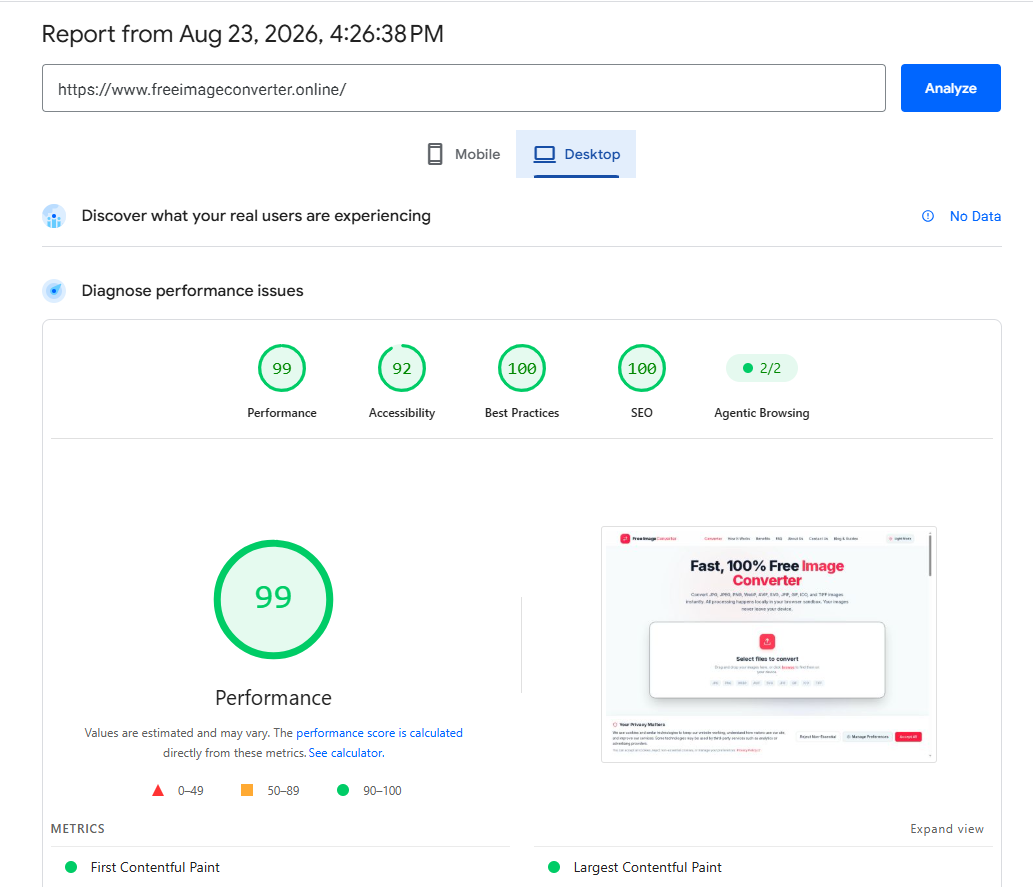
It's easy for advice like this to stay theoretical, so here's a real check instead of a hypothetical one. We ran our own site, which is nothing but image tools and image-heavy pages, through PageSpeed Insights.
The homepage scored 99 for Performance, with Accessibility, Best Practices, and SEO all in the green band as well.
A deeper page, the JPG to PNG converter tool, which also carries interface screenshots and preview images, scored the same 99 for Performance.
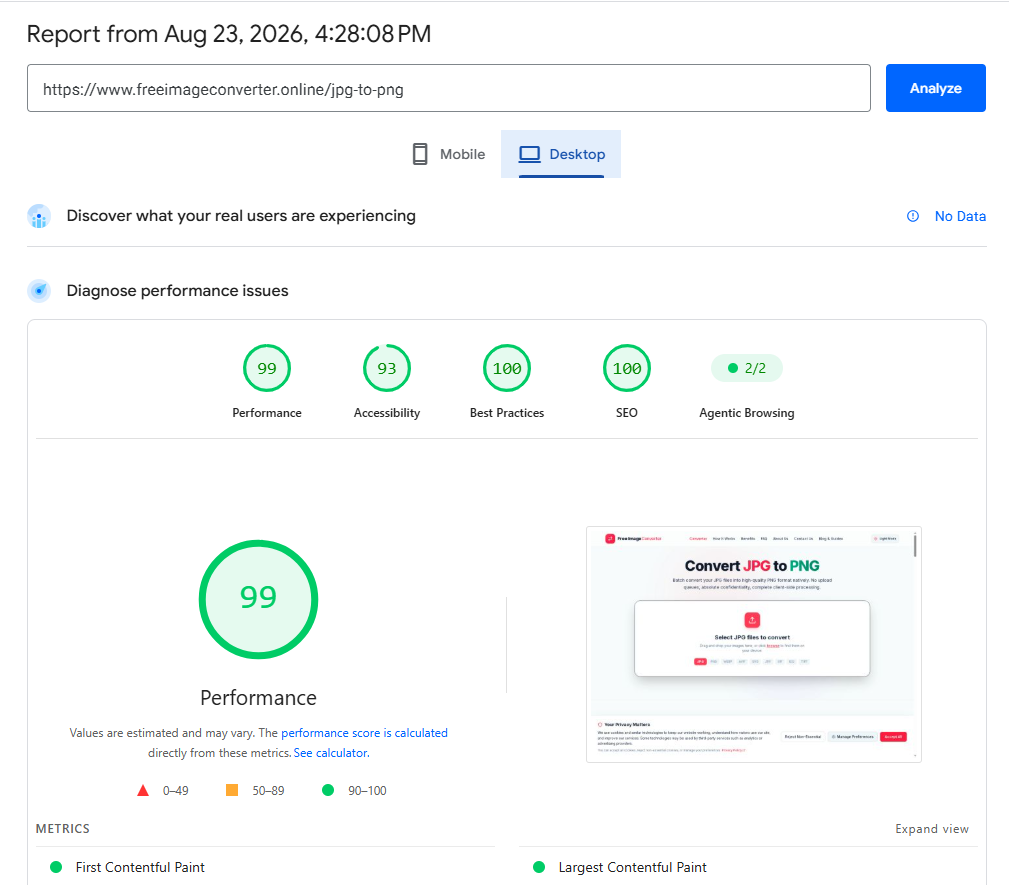
Neither page is stripped down or unusually light on images, they're standard pages built the normal way. The scores are the result of the same handful of fixes on this list applied consistently: modern formats, images sized for their actual display, priority given to the images that matter, and dimensions set so nothing jumps around while loading. None of it is exotic, and none of it required rebuilding the site from scratch.
Where to actually start
If you can only do one thing this week, it's the first item on this list: convert your largest, most visible images to WebP or AVIF using our converter. It's the change with the biggest single impact, and unlike the others, it usually doesn't require touching your site's code at all, just re-exporting or converting the image files themselves and re-uploading them in place of the originals.
Speed up your website with next-gen formats
Convert heavy JPG and PNG banners to lightweight WebP or AVIF images to instantly improve Core Web Vitals.