JPG vs PNG: We Converted a Real File and Weighed the Difference Ourselves
Key Actionable Takeaways
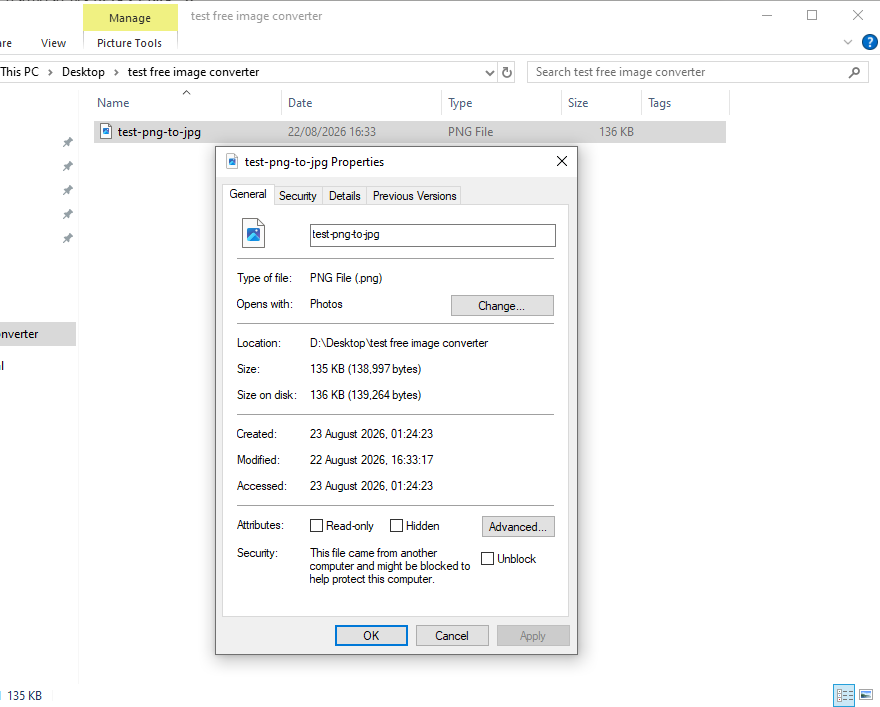
- Original Windows file properties: 135 KB (138,997 bytes) PNG converted to 72.5 KB (74,299 bytes) JPG.
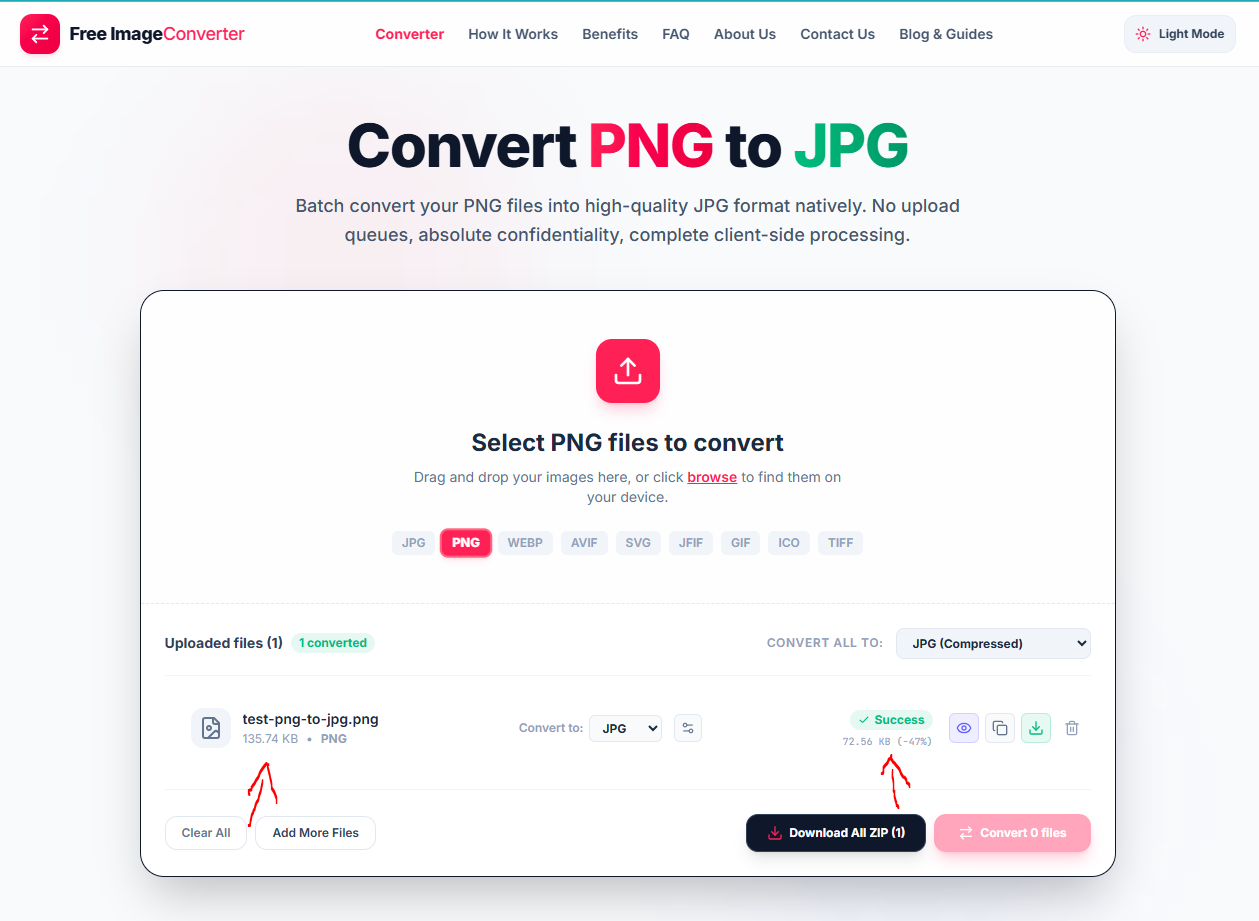
- Achieved a 47% file size reduction at default 82% Optimal quality with identical screen clarity.
- PNG preserves pixel-perfect lossless data, making it best for text, logos, and alpha transparency.
- All conversions run 100% locally in browser memory without sending files to any external server.
Every guide on the internet will tell you JPG is smaller and PNG is lossless. That's true, but it's also the kind of fact that means nothing until you see it happen to an actual file sitting on your own desktop. So instead of quoting general benchmarks again, we grabbed one test image, ran it through our own converter, and wrote down exactly what happened.
The file we started with
Nothing fancy, just a PNG we use for testing: test-png-to-jpg.png, sitting at 135.74 KB according to the upload screen, 135 KB on disk according to Windows. Small discrepancies like that between what a converter shows and what your file explorer shows are normal, they're just rounding KB versus KiB, but it's worth knowing so a 0.74 KB gap doesn't make you think something's wrong. Before touching anything, we checked the file's Properties panel in Windows: PNG File (.png), 135 KB (138,997 bytes) on disk. That's our baseline.
Running it through the converter
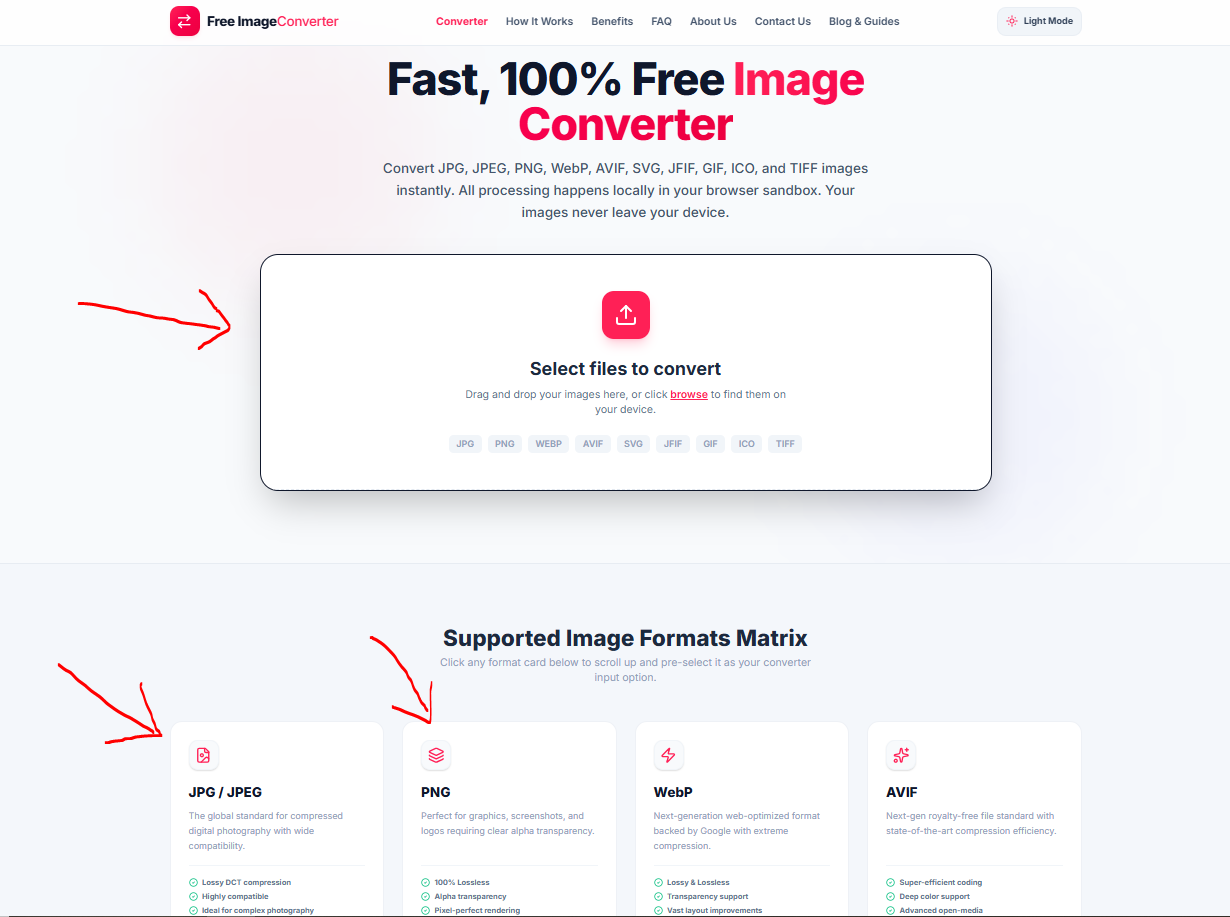
Getting to the actual conversion step takes about as long as it took you to read this sentence. Our homepage opens straight into an upload box under "Select files to convert," and there are really three ways into it, not one. You can drag an image straight onto that box and drop it, or scroll down to the "Supported Image Formats Matrix" section and click directly on the JPG/JPEG or PNG card, which jumps you back up and pre-selects that format as your input type. Either way lands you in the same place. We just dropped the file straight onto the upload box, since we already knew what we were converting from and to.
We uploaded the file to our PNG to JPG converter and left the settings on default before touching anything else. The interface shows the format row along the top (JPG, PNG, WEBP, AVIF, SVG, JFIF, GIF, ICO, TIFF), and under "Convert to" the dropdown was already set to "JPG (Compressed)."
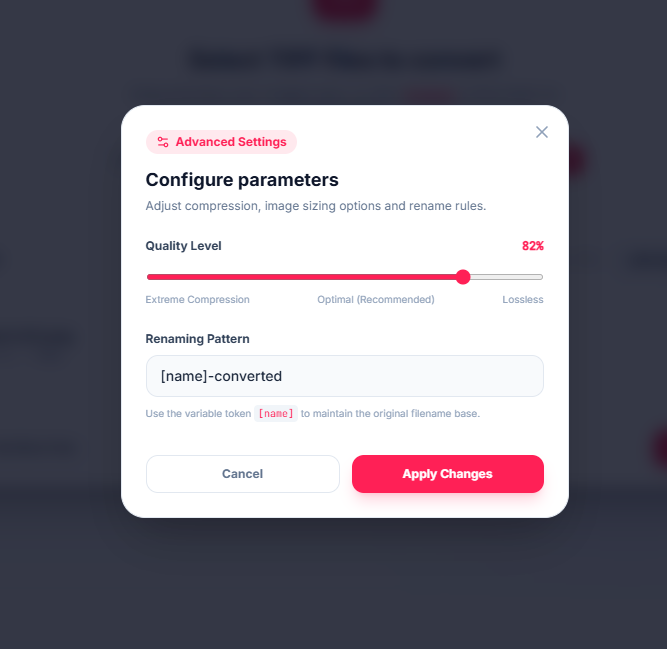
Before we hit convert, we opened Advanced Settings to see what "default" actually meant under the hood. The Quality Level slider sat at 82%, landing in the "Optimal (Recommended)" zone between Extreme Compression and Lossless. There's also a Renaming Pattern field, set to [name]-converted by default, so the output doesn't silently overwrite your original file, and no quality or file-count limit sitting behind a paywall, which matters if you're clearing out a folder with more than a couple of images in it. We didn't change any of it. The point of this test was to see what a normal user gets without tweaking a single slider.
What came out the other side
The conversion finished almost instantly, and the result panel showed the new file at 72.56 KB, a 47% reduction, marked with a green "Success" tag next to it. We didn't trust the in-browser number on its own, so we downloaded the file and checked its Properties in Windows separately: test-png-to-jpg-converted.jpg, JPG File (.jpg), 72.5 KB (74,299 bytes) on disk. That matches what the converter reported, off by the same rounding gap as the original file.
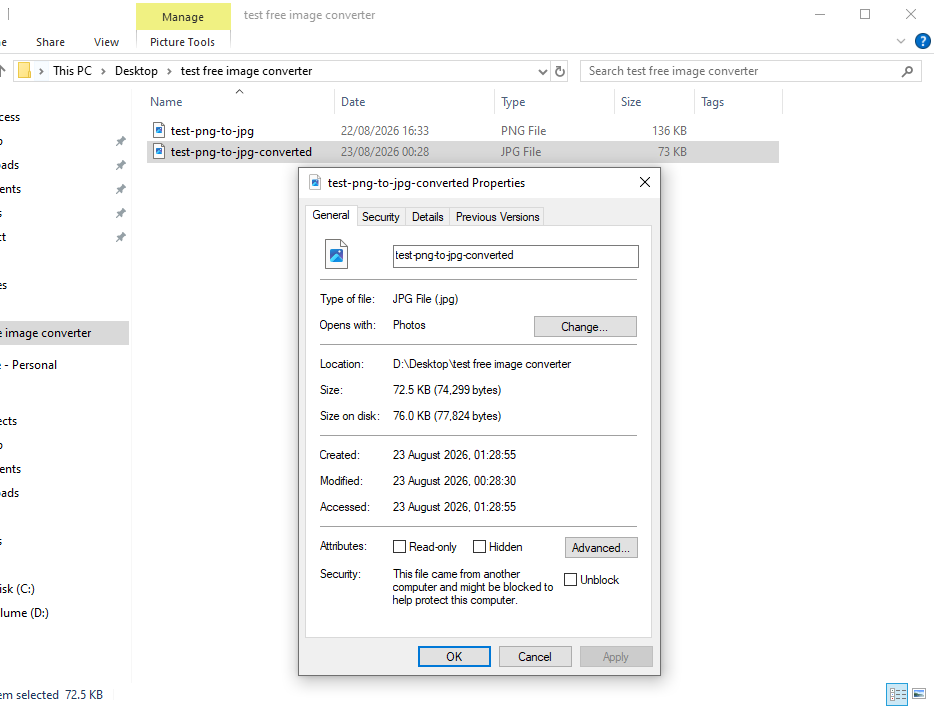
So, side by side:
| Original PNG | Converted JPG | Change | |
|---|---|---|---|
| File size (disk) | 135 KB (138,997 bytes) | 72.5 KB (74,299 bytes) | −47% |
| Format | PNG | JPG | — |
| Quality setting | — | 82% (Optimal) | — |
Cut almost in half, at a quality setting the tool itself calls "Optimal" rather than "Maximum," and on screen the two files looked identical. No visible banding, no obvious blur around edges, nothing that would make you look twice if you hadn't just seen the before-and-after side by side.
Why the drop was that big
This particular test file is exactly the kind of image where PNG loses the argument. PNG's DEFLATE compression is lossless, it never throws away pixel data, which is exactly why it's the right call for screenshots, logos with transparency, or line art. But that same losslessness means PNG has to store every pixel's exact value, and for anything with photographic detail, soft gradients, or a lot of unique colors, that adds up fast. JPG works differently. It uses frequency-based compression that intentionally discards detail the human eye is bad at noticing, mostly in areas without sharp edges or high contrast. If the source image doesn't rely on pixel-perfect transparency or crisp flat-color edges, and ours didn't, JPG gets to throw away a lot of information you'd never spot without a side-by-side crop at 400% zoom. A 47% cut on one file won't matter much on its own. It matters when that file is a product photo loading on every page of a storefront, or a blog header loading for every visitor on a slow connection. Multiply that saving by a few hundred images and it's the difference between a page that loads and a page someone bounces off of before it finishes.
The part this test doesn't cover
We should be honest about what this one file does and doesn't prove. This was a photographic-style PNG with no transparency. If your PNG has a transparent background, none of this applies the same way; converting it to JPG will fill that transparency with a solid color, permanently, because JPG has no alpha channel at all. There's no setting on our tool or anyone else's that gets that back once it's saved. If your PNG is a logo, an icon, or a UI element with soft-edged transparency, this conversion isn't the move, no matter how good the compression numbers look. The other thing worth flagging: 82% is a starting point, not a rule. We didn't push the slider toward Extreme Compression to chase a bigger number, because at some point past this range you start trading invisible savings for visible artifacts, blockiness in shadows, banding in gradients, especially on images with more color complexity than our test file had. If you're batch-converting a folder, our advice is the same as what we did here: leave it near the recommended range, convert a small batch first, and actually look at the output before running it across everything.
Running your own test
If you want to see this on your own file instead of taking our numbers for it, the process is the same three steps we used: upload, leave the default settings alone for a first pass, download and compare. Our PNG to JPG converter runs the whole thing in your browser, no file gets uploaded to a server, so there's no wait and nothing to worry about on the privacy side. Drop in a batch if you've got more than one, the tool handles that the same way, and check two or three results before trusting the rest of the folder to the same settings.
Ready to convert between PNG and JPG?
Test your own PNG and JPG files with our free in-browser converter—shrink file size without losing visual clarity.