Which Image Format Should I Use? Start With What You're Actually Doing
Format guides usually start from the format: here's JPG, here's PNG, here's what's different. That's backwards from how the decision actually gets made. Nobody opens a converter wondering about DCT compression, they're staring at a specific file that needs to go somewhere specific. So start here instead: what are you actually doing with this image right now?
Find your situation below. Each one ends in a real recommendation, not a list of trade-offs to weigh yourself.
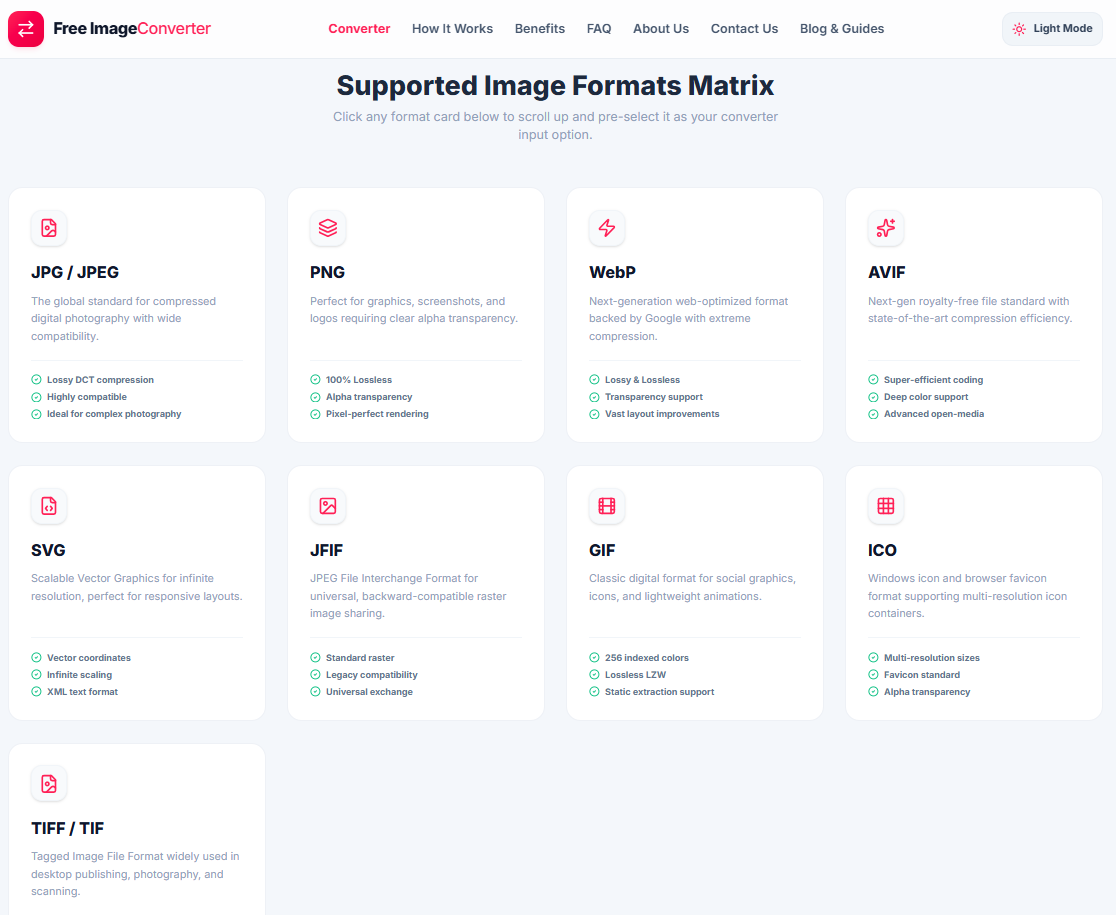
→ Website photo · → Logo · → Transparent graphic · → Screenshot · → Animation · → Print · → Archive · → Mid-edit, not finished · → Email · → Social media · → Maximum compatibility, no exceptions
→ Website photo
Best choice: WebP for most images, AVIF for large hero banners or product photography where every kilobyte matters.
Why: WebP runs 25-35% smaller than JPEG at equivalent visual quality and sits above 97% global browser support, close enough to universal that it's the safe default in 2026. AVIF compresses further still on large, detailed images, at the cost of slower encoding, which only matters if you're generating images on the fly rather than once ahead of time.
Avoid: PNG. Lossless compression on a photograph, something with continuous tone and natural noise, wastes enormous amounts of file size protecting detail nobody will consciously notice missing.
Alternative: Plain JPEG if your infrastructure genuinely can't serve WebP, though at this point that's a narrowing list of situations.
→ Logo
Best choice: Depends entirely on what you're starting from, and this is the branch most guides get wrong.
Why: If your logo already exists as a true vector file, made in a design tool like Illustrator or Figma, keep that vector file as the master and export raster sizes from it as needed. If you only have a raster logo (a PNG or JPG) and you're tempted to run it through a converter to get an "SVG" for infinite scalability, know what you're actually getting first: most raster-to-SVG converters, this site's tool included, don't perform real vectorization. They embed the original pixels as base64 data inside an SVG wrapper. The file gets the .svg extension, but the image data underneath is still the same fixed-resolution raster, and it will pixelate at large sizes exactly like the original would. We confirmed this on our own converter: a 67.65 KB JPG converted to "SVG" came back at 90.35 KB, larger, not smaller, consistent with pixel data wrapped in markup rather than actual vector paths.
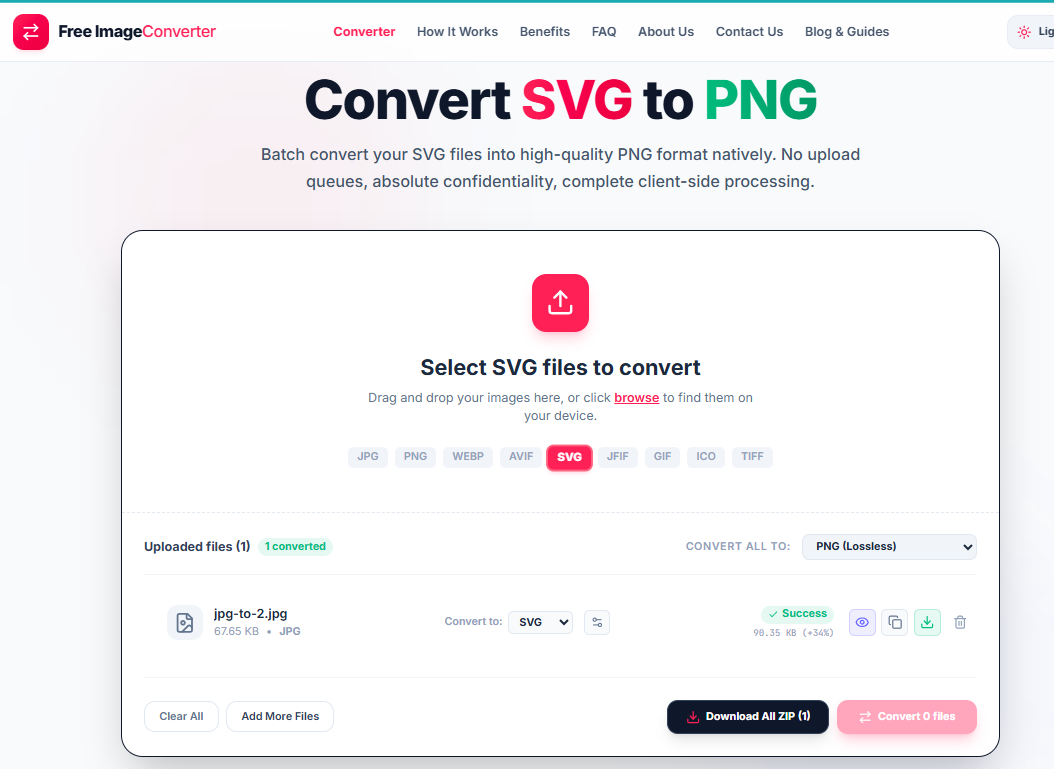
Avoid: Assuming any PNG-or-JPG-to-SVG conversion gives you a scalable vector. It doesn't, unless the specific tool explicitly advertises tracing or vectorization, which is a different, much more computationally involved process than format conversion.
Alternative: If what you actually need is a see-through background rather than infinite scalability, that's a transparency problem, not a vector problem, see the next section instead.
→ Transparent graphic (icon, cutout, overlay)
Best choice: PNG, or WebP if file size matters and you control the destination.
Why: Both formats carry a full 8-bit alpha channel, so semi-transparent edges and soft shadows render correctly, not just hard on/off transparency.
Avoid: JPEG and JFIF. Neither format has any concept of transparency at all. Converting a transparent PNG to either one fills the see-through area with a solid color, permanently, the instant the file saves.
Alternative: None needed here, PNG is the safe universal answer if you're not sure the destination supports WebP.
→ Screenshot or anything with sharp text
Best choice: PNG.
Why: JPEG's compression applies chroma subsampling by default, a step that averages color detail across small blocks of pixels. It's invisible on a photograph and very visible around hard-edged text or UI elements, showing up as fringing or muddiness right at the color boundary.
Avoid: JPEG at typical quality settings for anything text-heavy, a settings dialog, a code snippet, a diagram with labels.
Alternative: WebP's lossless mode gives similar text sharpness to PNG, often at a smaller file size, if the destination supports it.
→ Animation
Best choice: Whatever you started with, verified, not assumed.
Why: This is the branch where "the format supports it" and "your specific converter actually does it" can quietly diverge. Animated WebP is a real, well-supported part of the WebP specification. But we ran our own animated GIF through this site's converter set to WebP, and the output was not animated, it came back as a single static frame despite WebP being fully capable of animation. The size dropped from 1.76 MB to 23.98 KB, a reduction large enough that, in hindsight, it was itself a signal something more than compression had happened. The lesson generalizes past this one tool: never assume a converted animated file is still animated just because the destination format supports motion. Open it and check.
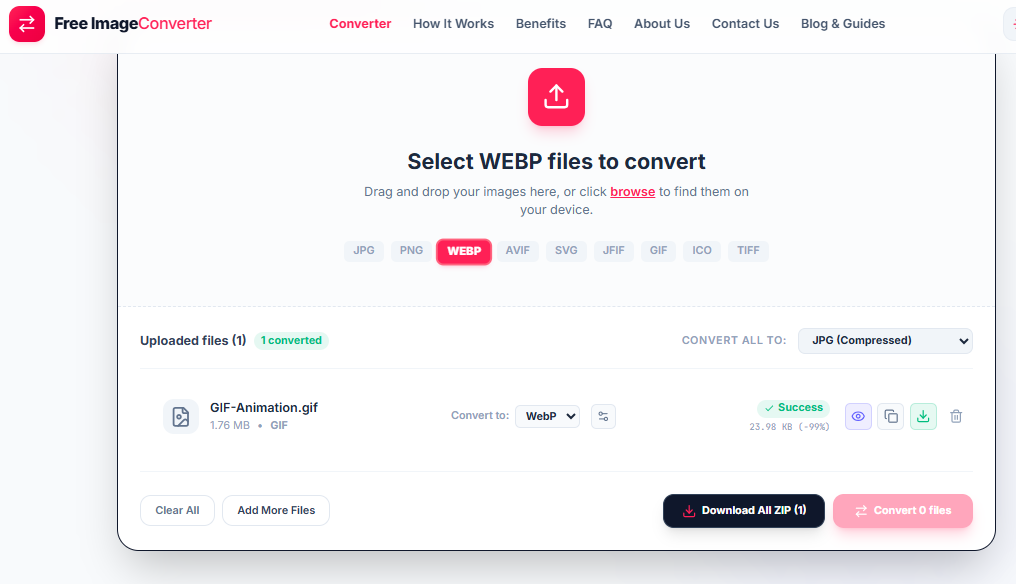
Avoid: JPEG, standard PNG, BMP, and ICO for anything meant to move, none of these formats support multiple frames under any circumstances, so this isn't a settings problem, it's a hard format ceiling.
Don't convert it: If you can't verify the output actually plays, don't replace your working animated file with an unverified conversion. Keep the original GIF until you've confirmed the new file animates the way you expect.
Best choice: TIFF for anything professional or large-format, a high-quality JPEG (90%+ setting) for casual prints through a consumer photo lab.
Why: Professional print workflows are built around TIFF's 16-bit color depth and native CMYK support, well beyond JPEG's 8-bit ceiling, and lossless storage avoids compression artifacts that can show up as banding once an image is enlarged to poster size.
Avoid: Low-to-medium quality JPEG for anything going to press at real size, and the "SVG" trap from the logo section above, wrapped raster data doesn't gain print-resolution scalability just because the file extension changed.
Alternative: A high-quality JPEG is a reasonable, much smaller stand-in for everyday consumer printing, where a commercial press isn't involved.
→ Archive, for the long term
Best choice: TIFF, or PNG for graphics and screenshots rather than photographs.
Why: Both are lossless, meaning the file you save today opens with identical pixel data years from now, with no accumulated compression damage from however many times it's been opened and re-saved.
Avoid: JPEG as the only copy of anything irreplaceable. Every re-save degrades a lossy file a little further, a real, measurable effect, so a JPEG that's been opened and saved a dozen times over the years is not the same file it started as.
Alternative: Keeping a lightweight JPEG copy alongside the lossless master, for quick previews or sharing, is fine. Just don't let the JPEG become the only surviving version.
→ Mid-edit, not finished yet
Don't convert it: If you're still going to open, adjust, and re-save this file multiple times before it's done, stay in a lossless format, PNG, TIFF, or your editor's native file type, through every one of those passes. Converting down to a lossy format like JPEG before editing is finished is exactly how generation loss compounds, a little quality lost on every single save, invisible at first and cumulative over time. Convert to your final delivery format only once, on the last save.
Best choice: JPEG.
Why: It's the one format that renders predictably across every major email client without exception. WebP and AVIF support in email clients is genuinely inconsistent, varying by client, by whether someone's on web or desktop, and by corporate Exchange configurations you have no visibility into.
Avoid: WebP, AVIF, and TIFF as attachments meant to display inline, any of the three risks showing as a broken image or a generic attachment icon depending on the recipient's client.
Alternative: PNG if the image needs transparency and file size isn't a major constraint.
→ Social media
Best choice: JPEG for photos, PNG if transparency is required.
Why: Most platforms re-compress whatever you upload regardless of the source format, so uploading an already-optimized JPEG avoids a second, unpredictable round of compression stacking artifacts on top of your own.
Avoid: Exotic or specialized formats, AVIF, TIFF, ICO, several platforms simply reject them at upload, and the ones that don't reject them will likely convert them anyway.
Alternative: Your camera or phone's original JPEG is usually already the right answer, extra processing beforehand often isn't necessary.
→ Maximum browser compatibility, no exceptions
Best choice: JPEG or PNG.
Why: This is the specific answer to the specific question of the broadest possible support, not the best everyday choice. WebP's ~97% is excellent but isn't literally universal, and if the requirement is genuinely zero tolerance for any visitor seeing a broken image, JPEG and PNG remain the closest thing to a guarantee.
Avoid: AVIF, currently the least broadly supported of the modern formats, and anything print-or-archive-oriented like TIFF, which browsers don't render inline at all.
Alternative: WebP with a JPEG or PNG fallback through the <picture> element covers the 97% with a smaller format while still guaranteeing the remainder sees something.
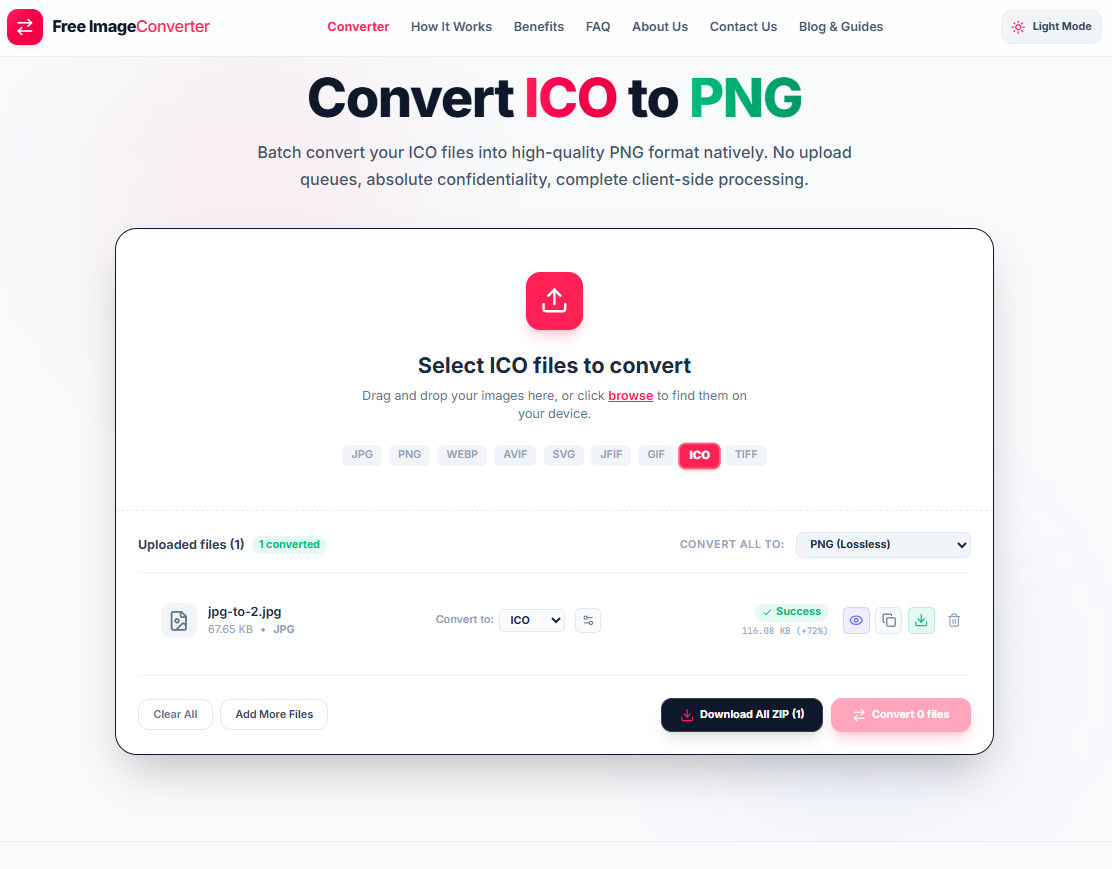
(Note on icons & favicons: When converting graphics for browser tab icons or system shortcuts, our converter packages genuine multi-resolution ICO files—embedding 16×16, 32×32, and 48×48 layers into a single container rather than a single resized frame).*
If your situation isn't listed
Most format questions collapse into two smaller ones: does this need to stay lossless through more editing, and does it need transparency or motion. Answer those two honestly and the right format is usually the one with the fewest compromises left standing, not the newest one. You can test and convert across any of these formats with our converter right in your browser.
Try the best format for your image
Test and convert across 9 popular image formats instantly in your browser with full quality controls.