Why the Same Image Can Have Different Colors After Conversion
Two images can go through what looks like an identical conversion same source format, same destination format, same tool and come out with completely different outcomes. One keeps its colors exactly as they were. The other comes out visibly muted or shifted, even though nothing in the visible pixel grid moved, resized, or recompressed. Both outcomes are correct behavior, not bugs. The difference is in something the file carries that most people never look at: its color profile. Two cases below walk through what that profile actually does, and why identical-looking conversions can land on opposite outcomes.
CASE #01 Same pixels, different-looking colors
Evidence. A photo tagged with a wide-gamut color profile Adobe RGB is the classic example is run through a conversion pipeline that copies the raw pixel numbers into the new file without adjusting them, and drops the original profile in the process. Photographers hit this constantly: a photo edited and exported in Adobe RGB looks correct in the editor, then looks washed out and muted the moment it's uploaded somewhere that strips the tag.
What changed. The visual result. Reds and greens in particular lose intensity Adobe RGB's gamut extends noticeably further in those two channels than sRGB's does, so the loss is more visible there than in blues.
What did NOT change. The actual numbers stored in the pixel grid. A pixel that was R:200, G:80, B:60 in the source file is still R:200, G:80, B:60 in the output. Nothing in the conversion "damaged" the data.
Possible explanation. The three numbers in a pixel R, G, B don't mean anything on their own. They're coordinates, and a color profile is what tells a screen which physical color those coordinates point to. R:200, G:80, B:60 in Adobe RGB and the same three numbers in sRGB are two different colors, because the two profiles define different physical reds for the same coordinate. When a converter drops the profile without converting the numbers to match, every downstream viewer has to guess which coordinate system it's reading and the near-universal default guess is sRGB. If the file was really Adobe RGB, that guess is wrong, and the visual result is muted compared to the original.
Controlled test. This exact pattern shows up repeatedly in photography forums: a user exports from Lightroom or Photoshop in Adobe RGB, uploads the file somewhere, and the result looks washed out until they reopen the "wrong looking" file and manually reassign the Adobe RGB profile to it, at which point it matches the original exactly. That test is the tell: if reassigning the original profile restores the color, the pixel numbers were never touched. Only the profile was lost.
What the result tells us. A shifted color after conversion is very often not a compression artifact or a data-loss problem it's a profile mismatch. The pixels are innocent; the missing instructions for reading them aren't.
CASE #02 Same conversion, nothing shifted
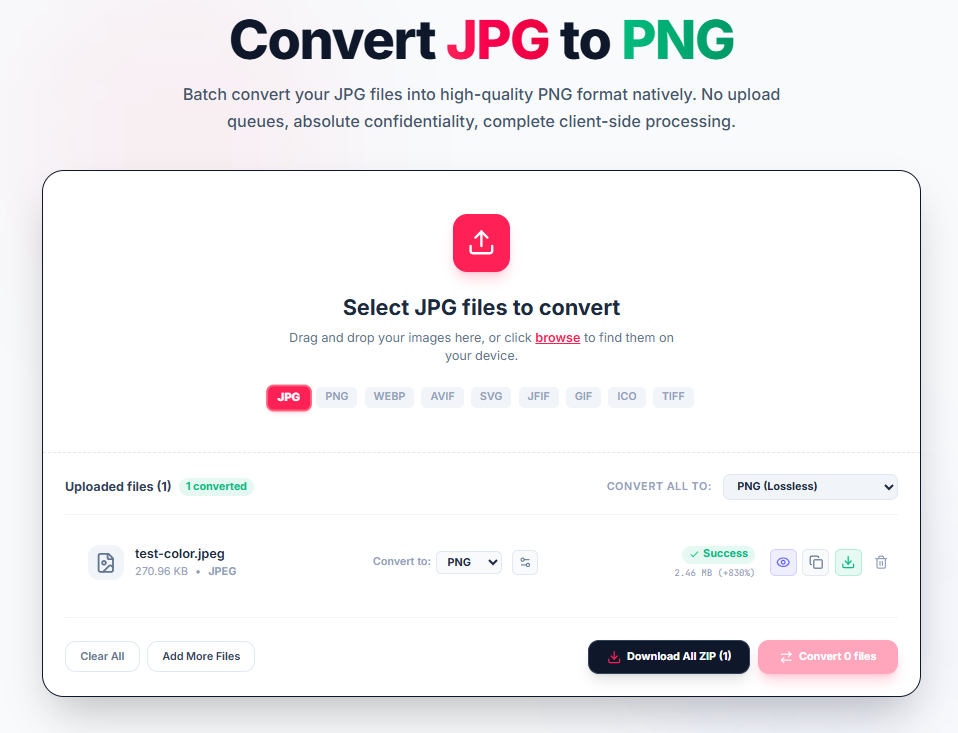
Evidence. A standard JPEG screenshot-style image no embedded wide-gamut profile, default browser-generated sRGB was run through Free ImageConverter's JPG to PNG tool. Source file: 736 × 1472, 24-bit, 270 KB.

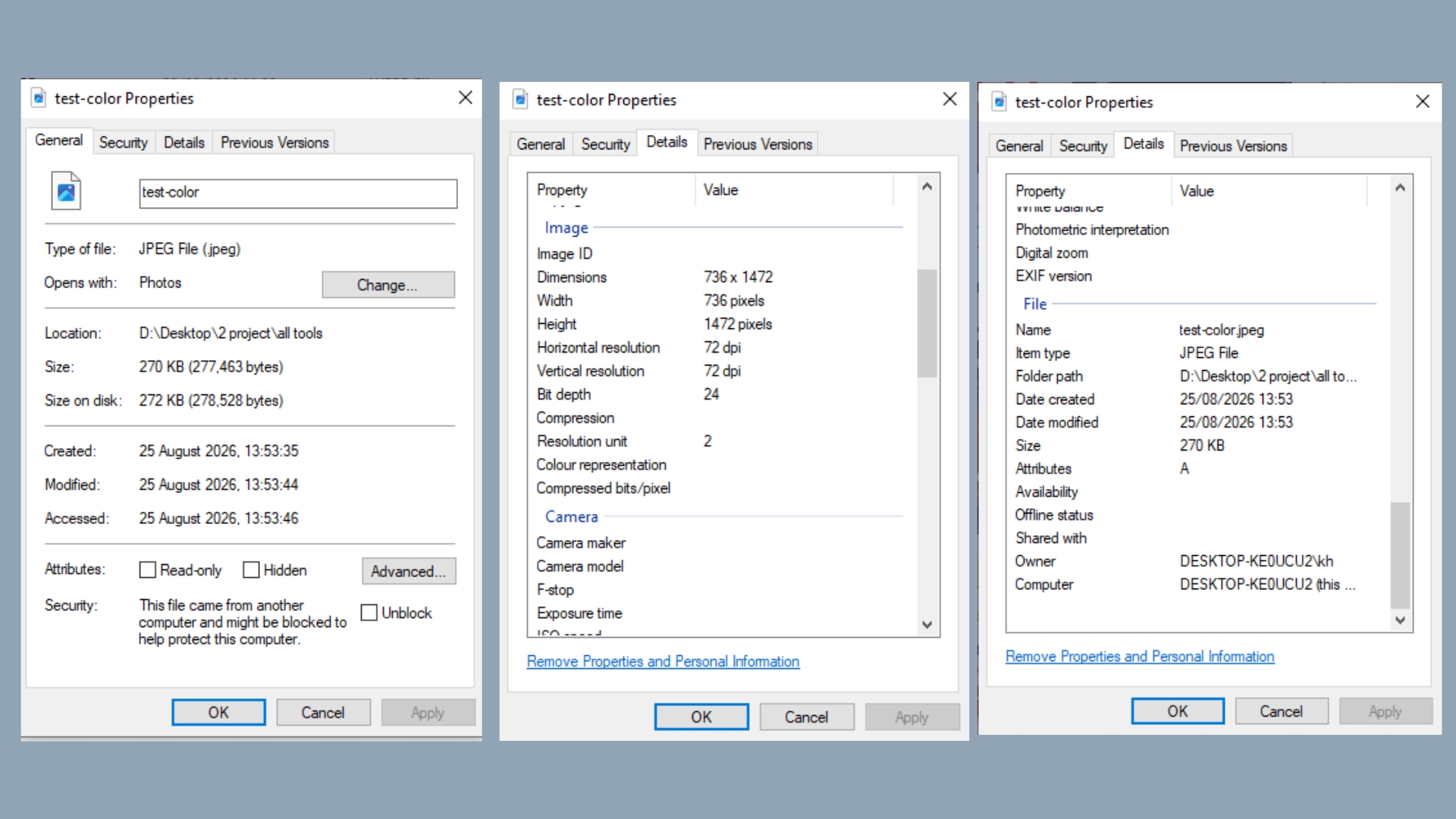

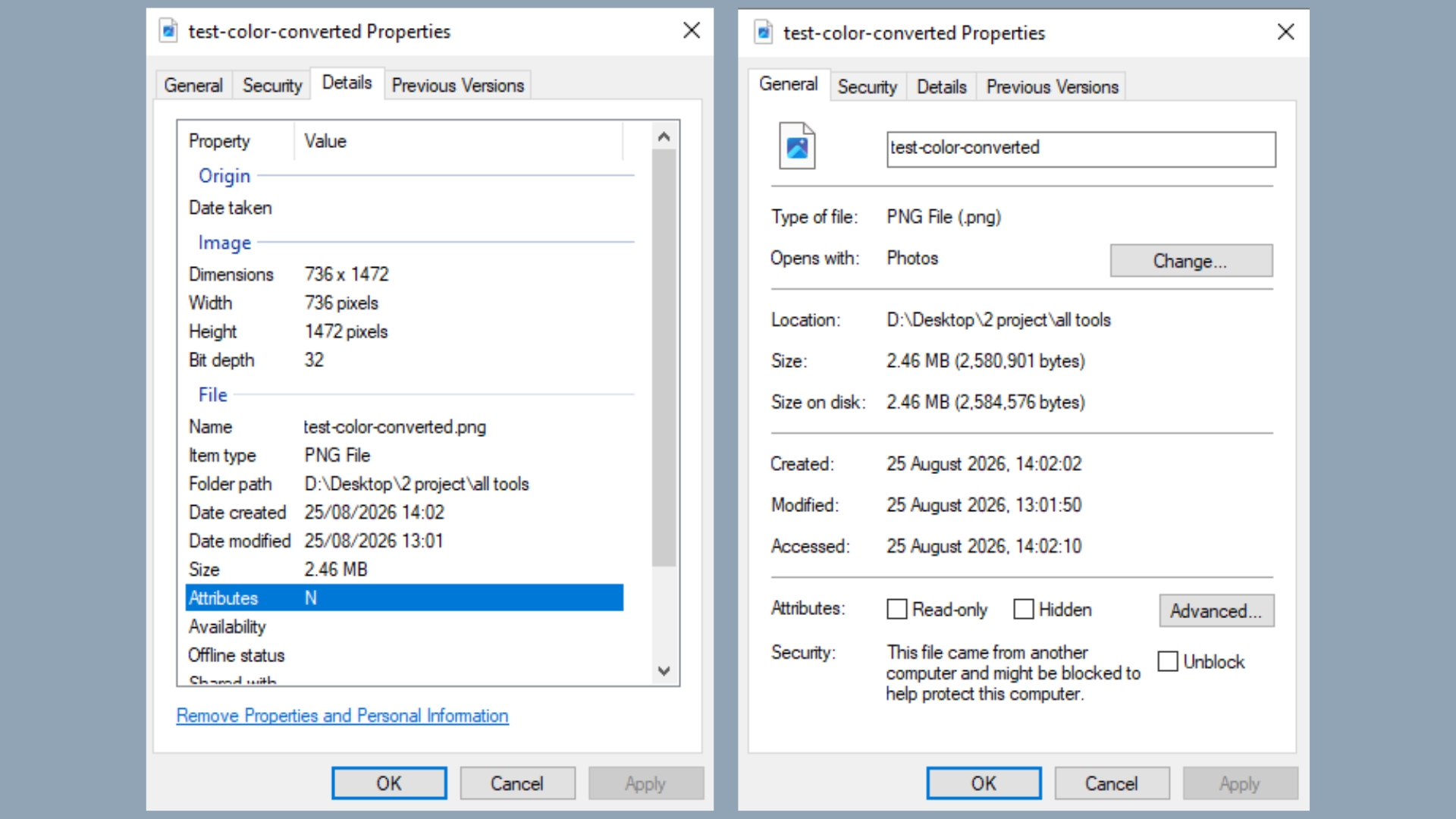
Output file: 736 × 1472, 32-bit, 2.46 MB.
What changed. The bit depth (24-bit → 32-bit, from the alpha channel PNG always carries, even on an image with no transparent pixels) and the file size (270 KB → 2.46 MB, expected PNG's lossless storage is larger than JPEG's compressed output for the same visible content). The dimensions stayed identical: 736 × 1472 in both files.
What did NOT change. Visually, the colors. Placed side by side, the source and the converted output are indistinguishable.
Possible explanation. This conversion runs entirely in the browser, decoding the source image onto an HTML canvas before re-encoding it as PNG. Canvas 2D in modern browsers is fully color-managed by specification: content is converted to the canvas's working color space when it's drawn, and the working space defaults to sRGB, with untagged content interpreted as sRGB by default under this model. Since the source JPEG had no embedded wide gamut profile to begin with it was already, implicitly, sRGB there was no gap between "what the file claims" and "what the pipeline assumes." Nothing needed correcting, so nothing shifted.
Controlled test. Reproducing Case #01's test method here reassigning a different profile to the output and checking whether it changes the visual match turns up nothing, because there's no profile mismatch to find. The output isn't a lucky pass; it's the expected result any time source and destination assumptions already agree.
What the result tells us. The same underlying mechanism canvas decoding, defaulting to sRGB produces two opposite-looking outcomes depending entirely on what the source file was tagged as going in. An untagged or already-sRGB source converts cleanly, as shown here. A wide-gamut-tagged source run through a pipeline that skips the conversion step, as in Case #01, does not.
Comparison: Why These Two Cases Landed on Different Outcomes
| Case #01 | Case #02 | |
|---|---|---|
| Source profile | Wide-gamut (e.g. Adobe RGB), embedded | None embedded implicitly sRGB |
| Pipeline behavior | Copies raw numbers, drops profile without converting values | Decodes via color-managed canvas, defaulting to sRGB |
| Destination assumption | sRGB (by default, in the absence of any tag) | sRGB |
| Source vs. destination assumption | Mismatched | Matched |
| Visual result | Muted / shifted | Unchanged |
The variable that decides the outcome isn't the destination format, the tool, or the compression settings it's whether the source file's actual color space and the pipeline's assumed color space agree before the pixels get re-encoded.
Practical Conclusion
For most web images screenshots, UI assets, JPEGs straight off a phone camera set to its default capture mode the source is already sRGB or close enough that the difference is imperceptible, and a canvas-based conversion like the one in Case #02 will preserve color faithfully with no extra steps.
The case where it's worth pausing is a photo exported from a RAW editor with Adobe RGB, ProPhoto RGB, or a similarly wide working space still active. Two things prevent Case #01 from happening to that file: converting it to sRGB explicitly before it enters any web pipeline, and confirming the color profile travels with the file rather than getting silently dropped along the way. Photographers and designers moving finished work from a color-managed desktop workflow into a browser-based tool are the group most likely to hit this not because the tools are unreliable, but because that's the one handoff point where a wide-gamut assumption and a "default to sRGB" assumption are most likely to disagree.
If a converted image looks off in a way that resembles Case #01 muted, or shifted specifically in reds and greens the pixel grid is very likely intact. What to check first isn't the conversion settings; it's what color profile the source file actually carried in before it went anywhere near our converter.
Preserve color profiles in conversion
Convert your photos to PNG, JPG, or WebP with accurate color management right in your browser.