Why Your "Small" PNG Logo Is Actually the Heaviest File on Your Website
A client sent over a logo file last month. Just one PNG, meant to sit in a header that renders at 180 pixels wide. That single file was heavier than three of the product photos on the same page combined.
This happens constantly, and it's rarely the designer's fault. Most design tools default to PNG for everything because PNG is "safe": no compression artifacts, no quality loss, works everywhere. What nobody mentions is that safety comes at a real cost when the image doesn't actually need PNG's strengths in the first place.
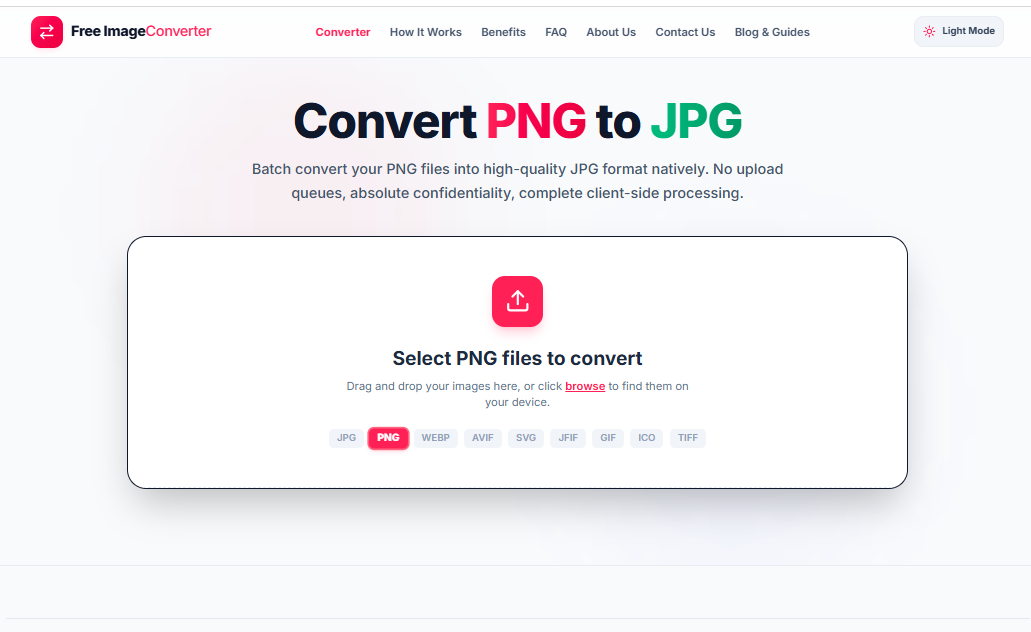
The question that actually matters
Before converting anything, there's one question worth asking: does this image need transparency?
If the answer is no, and for photographs, banners, hero images, and most screenshots it almost always is, then PNG is the wrong format and you're paying a size penalty for a feature you're not using. That's the entire case for converting PNG to JPG, and it's a narrower case than most guides make it sound. This isn't "JPG is better than PNG." It's "this specific file doesn't need what PNG offers, so stop paying for it."
What actually happens when you convert
PNG stores every pixel exactly, including a full alpha channel for transparency, whether the image uses transparency or not. JPG throws away information the eye barely notices, using frequency-based compression tuned for photographic detail, and it has no alpha channel at all.
That second part is the one people skip past. Converting a PNG with a transparent background to JPG doesn't just compress the file. It fills in that transparency with a solid color, usually white, and that fill is permanent. There's no slider or setting that brings it back. So the honest first step isn't opening a converter, it's checking whether the file even has transparent pixels to lose. Most photographic PNGs don't. Most logos and icon sets do.
Running an actual file through the tool
Instead of quoting general benchmarks, here's a real conversion we ran through our own converter. We queued up a 135.52 KB PNG test file.
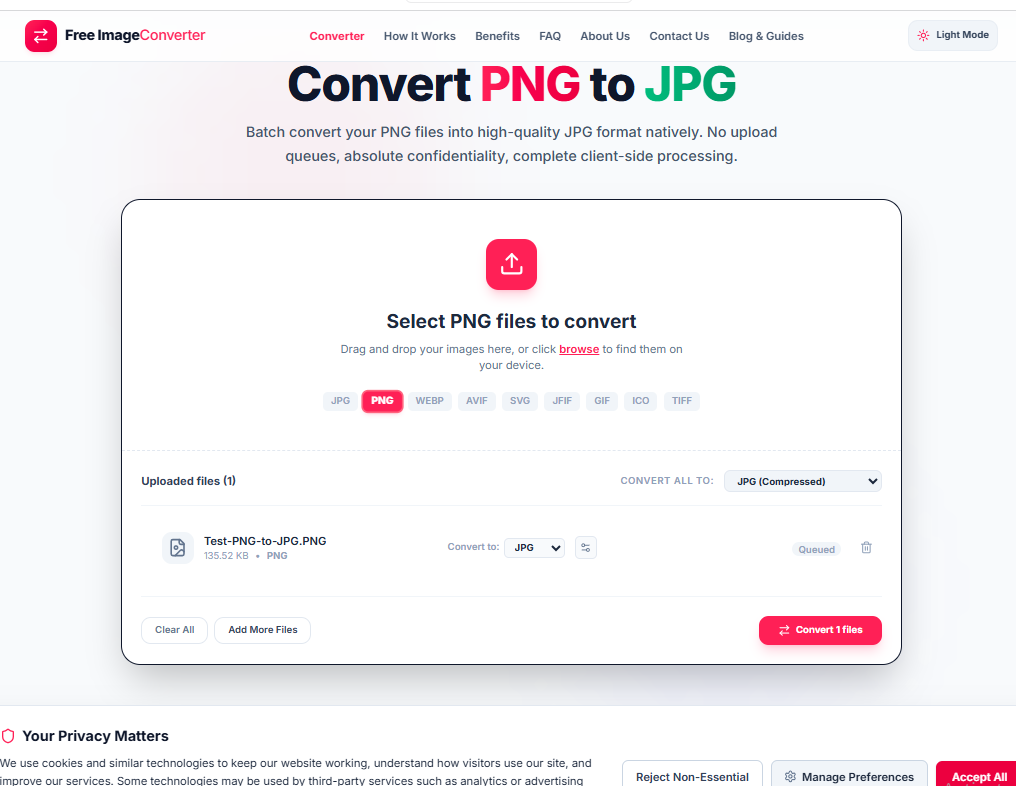
Before converting, we opened the Advanced Settings panel to check the quality level, which sits at 82% by default in the "Optimal (Recommended)" range of the slider.
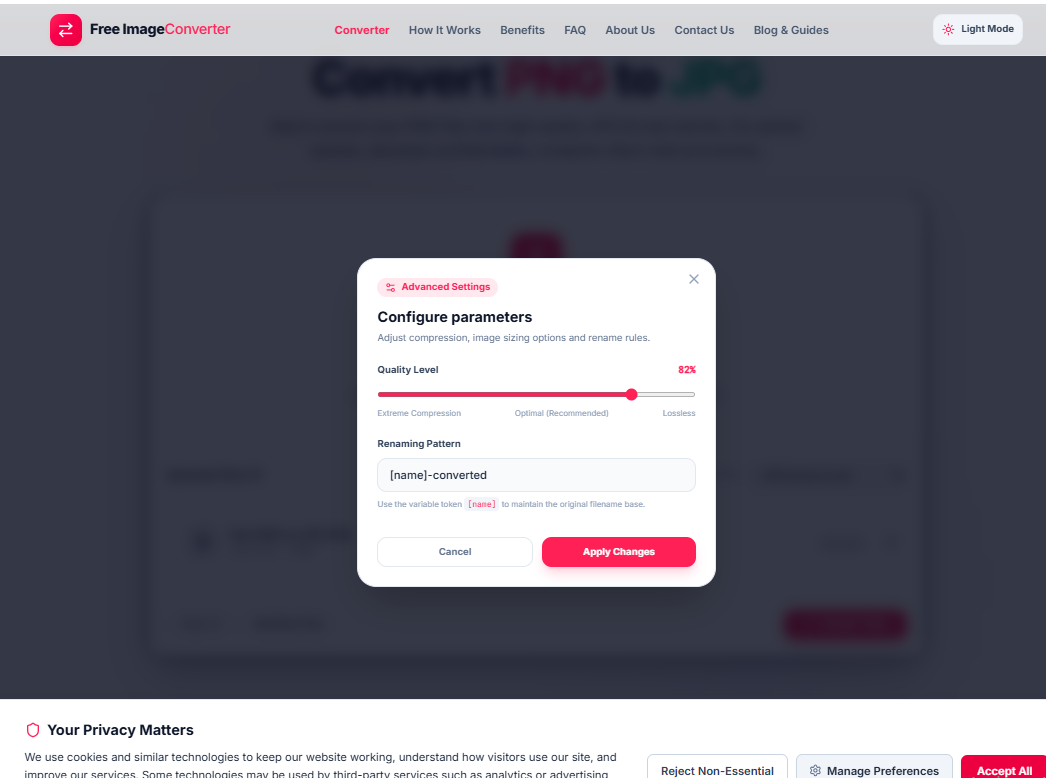
After conversion, the file dropped from 135.52 KB to 90.49 KB, a 33% reduction, with no visible quality loss on screen.
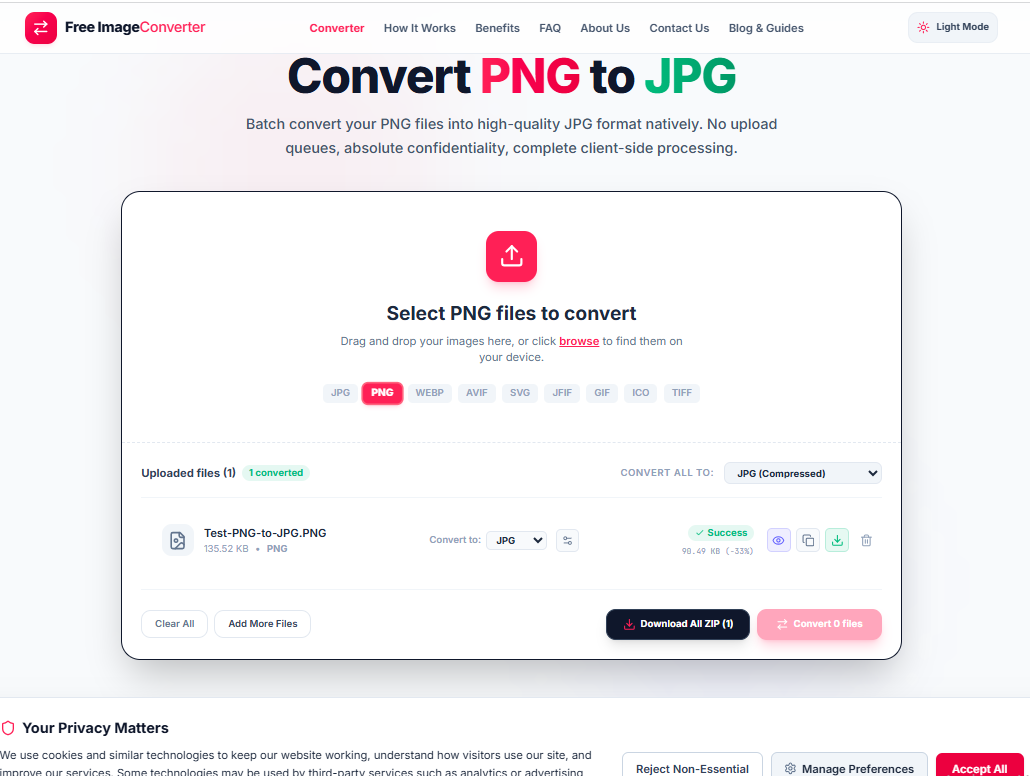
That's a single file. The same panel handles multiple images at once too: you can drop an entire folder in, set one quality level, and apply it across the whole batch instead of converting files one by one, which is the actual time saver once you're clearing out more than two or three images.
A rough guide, based on what we've actually seen go wrong
| File type | Convert to JPG? | Why |
|---|---|---|
| Product or portrait photography | Yes | No transparency to lose, biggest size savings |
| Screenshots without transparency | Usually | Small quality trade-off, large size win |
| Logos with transparent background | No | Transparency loss is permanent |
| Icons, UI elements, line art | No | Compression artifacts show up around edges |
| Scanned documents | Depends | Fine for photos of documents, bad for scanned text |
The setting worth knowing about
The quality slider runs from Extreme Compression up to Lossless, and in practice the useful range sits between 75% and 90%, which is where the 82% default we tested falls. Below that, photographic images start showing visible blockiness in shadow areas. Above 90%, file size climbs fast for a difference that's hard to see on a normal screen. For a batch job, setting quality once and applying it to every file in the queue, then spot-checking two or three results, is faster than tuning each image individually and gives nearly identical results.
If you're clearing out a folder of PNGs that were never meant to be PNGs in the first place, that's what this tool is for. If you're staring at a logo with a transparent background, close this tab and leave it exactly as it is.
Transparency Notice
Converting PNG to JPG removes alpha channel transparency. Transparent backgrounds are rendered as solid white permanently.
Conversion Highlights
- 30-90% Size Reduction: Cut photographic PNG weight without perceptible visual loss.
- Batch Processing: Drop multiple PNGs and convert them all at once into lightweight JPGs.
- Custom Renaming: Maintain organized folders with structured output filename patterns.
Quality Control
Recommended 75% to 90% (82% default) gives optimal size savings with zero visible distortion.
Conversion executes completely in your local browser sandbox via WebAssembly. Your images are never sent over the internet.