PNG to WEBP: The One Choice PNG Never Made You Make
Every PNG you've ever saved is lossless. There was never a decision to make about that; it's simply what the format does. WEBP breaks that pattern. It's built to run in two genuinely different modes, lossless and lossy, inside the same file spec, and the moment you convert a PNG to WEBP, you're making a choice that never existed for that file before.
That choice changes the outcome by a wide margin, and the gap is worth understanding before picking a setting.
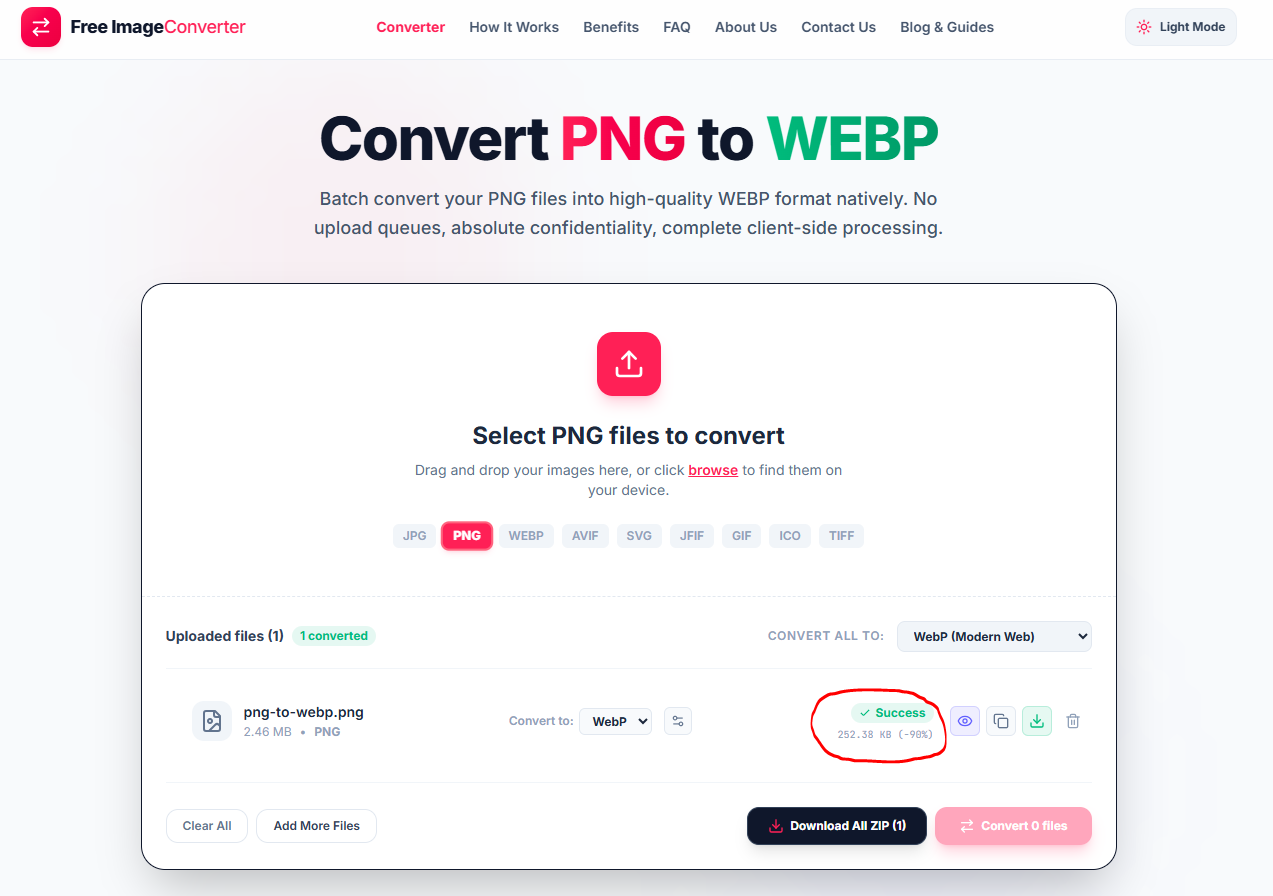
We converted a real 2.46 MB PNG using the tool's default WebP (Modern Web) setting and got a 252.38 KB file back, a 90% reduction.
Lossy vs. Lossless WebP Mechanics
That number is real, but it comes from the lossy side of WebP, the mode built to discard some data in exchange for aggressive compression, similar in spirit to how JPG works. It's an excellent result for a web image where a tiny bit of quality trade-off is invisible in practice. It is not what you'd get from WebP's lossless mode, which keeps every pixel exactly as the source PNG had it. Google's own published benchmarks put lossless WebP at roughly 26% smaller than an equivalent PNG on average, a meaningful improvement, but nowhere near the 90% territory a lossy pass reaches. Both modes are legitimately "converting to WebP." They just answer a completely different question about what you're willing to trade.
Matching the Mode to the Image Purpose
So the real decision isn't really about WebP at all, it's about what the PNG is for. A product photo or a background image heading to a web page almost certainly doesn't need pixel-for-pixel precision, and the lossy default is the right call, the same one that produced the 90% drop above. A PNG that's actually functioning as data, a screenshot with fine text, a diagram, a graphic that might get re-edited later, is a better candidate for lossless mode specifically because there's no acceptable amount of data to lose.
Transparency survives either way, which is one thing WEBP doesn't force you to negotiate. Both its lossy and lossless modes support a full alpha channel, so a PNG with a transparent background keeps that transparency regardless of which mode you pick, unlike converting to a format like JPG where transparency is off the table entirely.
Worth knowing too: this isn't the only place a PNG can go through this tool. The same conversion queue on the PNG converter lets you send the file to JPG, AVIF, SVG, JFIF, GIF, ICO, or TIFF instead, from the same dropdown next to your upload, if WebP turns out not to be the destination this particular file actually needs.
Dual-Mode Engine
WebP combines modern lossy predictive block coding for drastic 90% byte cuts with bit-exact lossless dictionary modes.
Key Advantages
- Transparency Kept: Full 8-bit alpha channel supported in both lossy and lossless outputs.
- Massive Bandwidth Savings: Dramatic size reduction speeds up page loads and Core Web Vitals.
- Universal Browser Support: Modern WebP is natively supported in Chrome, Safari, Edge, and Firefox.
Custom Quality Slider
Fine-tune the compression factor to strike the ideal balance between maximum visual fidelity and minimal file size.
Your PNG files are converted entirely on your device via WebAssembly. No files are uploaded to remote servers.