Why That "JPG" You Saved From Chrome Is Actually a WEBP
You right-clicked an image on a website, hit "Save image as," and the file that landed in your downloads folder won't open in the software you needed it for. Check the extension. There's a good chance it says .webp, not .jpg, even though nothing about the image looked unusual on the page.
That's not a bug. It's how most modern websites serve images now, and it creates a specific, recurring problem that has nothing to do with image quality. Here's the honest breakdown of what's going on and when converting actually solves it.
Why did the website give me a WEBP instead of a JPG?
Browsers and servers negotiate this automatically. If your browser supports WEBP, which nearly all modern ones do, the server sends the WEBP version because it's typically smaller and loads faster. You never asked for WEBP specifically. The website just decided it was the more efficient option for that connection, and handed it to you without asking.
This is fine as long as the file stays inside a browser. The trouble starts the moment it needs to leave one.
So why does the file suddenly stop working?
Because plenty of software still doesn't read WEBP by default: older versions of Photoshop, some print workflows, certain CMS upload fields, a number of email clients, and more than a few social platforms that quietly reject the format on upload. None of that is a flaw in your file. It's a gap in how widely WEBP has been adopted compared to JPG, which has been the default for over three decades.
Does converting WEBP to JPG make the file smaller?
Usually the opposite, and this is the part most guides skip. WEBP's compression is typically 25 to 35% more efficient than JPG at a comparable quality level, which is the entire reason websites serve it in the first place. Converting a WEBP to JPG generally makes the file bigger, not smaller. If your only goal is a smaller file, converting to JPG is working against you, not for you. The reason to convert is compatibility, full stop. It's not an optimization step, and treating it like one will leave you disappointed.
What happens if the WEBP has a transparent background?
WEBP supports transparency the same way PNG does. JPG doesn't support it at all. So converting a WEBP with any transparent or semi-transparent pixels to JPG flattens that transparency onto a solid background, almost always white, and that change is permanent once the file is saved. If you're converting a graphic that's meant to sit on a colored page or overlay other content, check for transparency first. A logo or icon that looked fine in WEBP will come out with a visible white box around it in JPG, and there's no setting on the way back.
When should I actually reach for this converter?
A short, honest list of real situations, not hypothetical ones:
- A CMS or upload form rejects WEBP files outright.
- An older image editor won't open the file at all.
- A print shop or publishing workflow specifically asks for JPEG.
- Someone you're sending the file to has software that can't read WEBP.
If none of those apply and you just downloaded a WEBP that displays fine everywhere you need it, there's no reason to convert it. You'd only be trading a smaller file for a larger one with no benefit attached.
How does the conversion actually work here?
The WEBP to JPG converter processes files locally in your browser through WebAssembly, so the image never gets uploaded anywhere during conversion. It supports the same batch queue and quality slider as our other converters, so a folder of WEBP files downloaded from a website can go through in one pass instead of one at a time. Just remember to check any transparent images in that batch before you queue them. Once they're converted, that transparency is gone for good.
Does it only convert to JPG?
No, and it's worth knowing this before you bookmark ten different converter pages. The same upload queue lets you pick the output format per file or for the whole batch at once, covering PNG, JPG, JPEG, WebP, AVIF, SVG, JFIF, GIF, ICO, and TIFF.
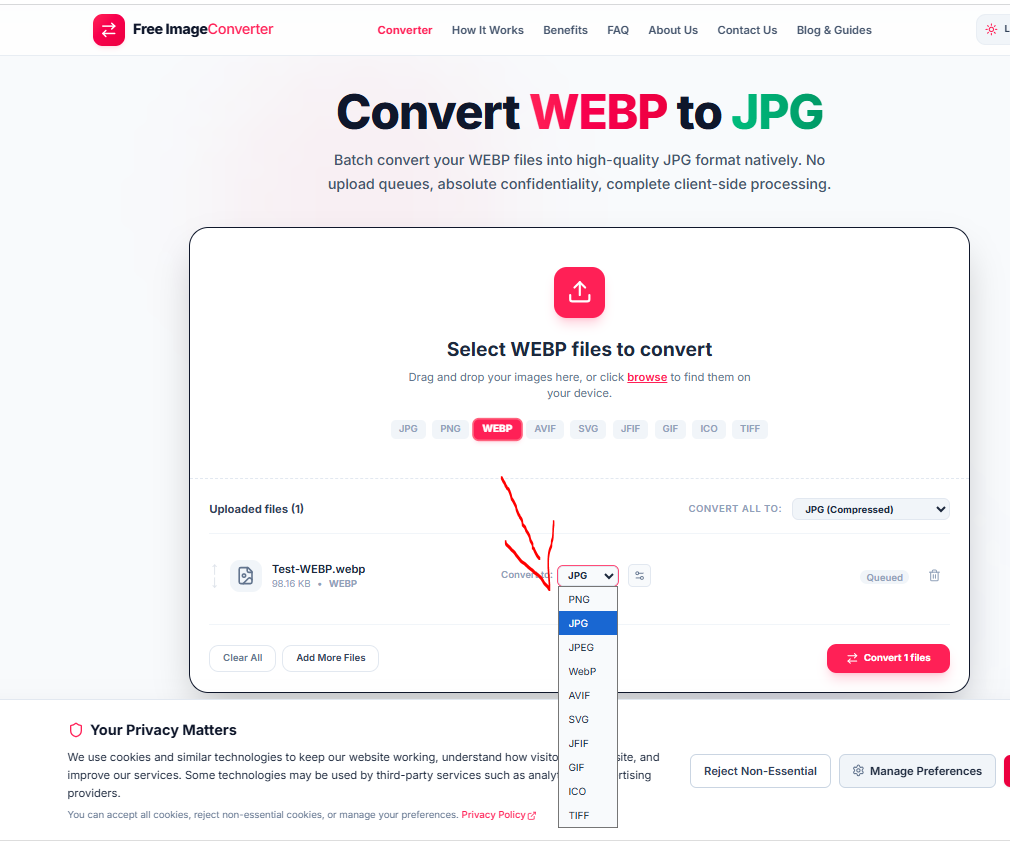
So if the WEBP file you're dealing with actually needs to end up as PNG instead of JPG, for example because it has transparency you want to keep, you don't need a different tool. Just pick PNG from that same dropdown instead of JPG, and the transparency stays intact.
Transparency Warning
Converting transparent WEBP files to JPG permanently replaces transparent backgrounds with solid white. Choose PNG if you need to keep transparency.
Key Advantages
- Universal Compatibility: JPG opens seamlessly across all legacy photo editors, email apps, and office suites.
- Batch Processing: Drop multiple downloaded WEBP files and convert them all in a single batch.
- Multi-Format Output: Convert to JPG, PNG, AVIF, TIFF, ICO, or GIF from the same queue.
Quality Control
Fine-tune output JPG quality with the slider (80%–90% recommended) to preserve crisp visuals while minimizing file enlargement.
Conversion executes completely inside your browser sandbox via WebAssembly. Your images are never uploaded to any remote server.