Convert JPG to PNG for Free: Why We Built a Client-Side Batch Converter (And How We Use It)
If you've read our breakdown of JPG vs PNG compression, you already know PNG is the format to reach for when you need transparency or pixel-perfect text and line art. The problem most people run into next is simple: how do you actually get from a folder of JPGs to a folder of clean PNGs, quickly, safely, and without installing anything?
That's exactly why we built Free ImageConverter's JPG to PNG tool (try it here), and after using it across dozens of real conversion jobs on our own site (screenshots, product photos, WhatsApp exports), here's an honest walkthrough of how it works and where it actually helps.
Why Client-Side Conversion Matters
Most "free" online converters quietly upload your images to a remote server, process them there, and send the result back. That's an extra round trip, an extra point of failure, and, more importantly, an extra place your files sit before you regain control of them.
Our converter does none of that. Conversion happens entirely inside your browser through WebAssembly, so the file never leaves your device. For anyone converting client screenshots, unreleased product photos, or personal images, that's not a minor detail, it's the whole reason to pick this tool over a generic upload-based service.
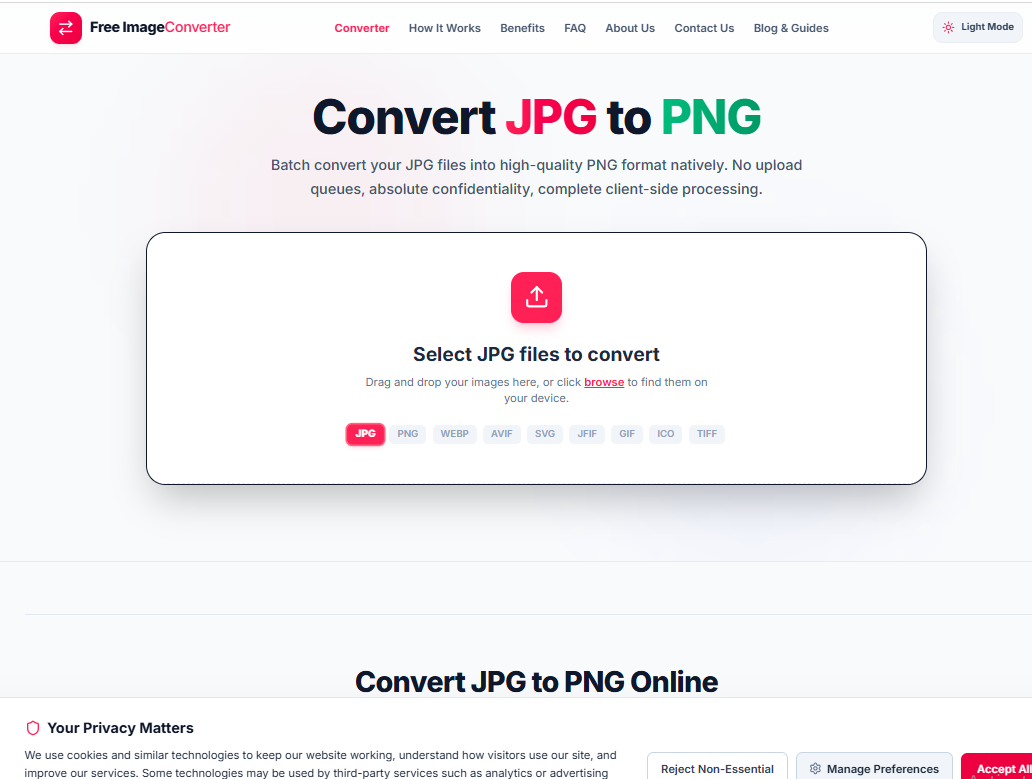
Real Example: Converting a WhatsApp Screenshot
To show how this actually plays out, here's a real conversion we ran on the tool. We dropped in a JPEG exported from WhatsApp, a common source of "why is this photo blurry when I save it" complaints, since WhatsApp re-compresses everything hard.
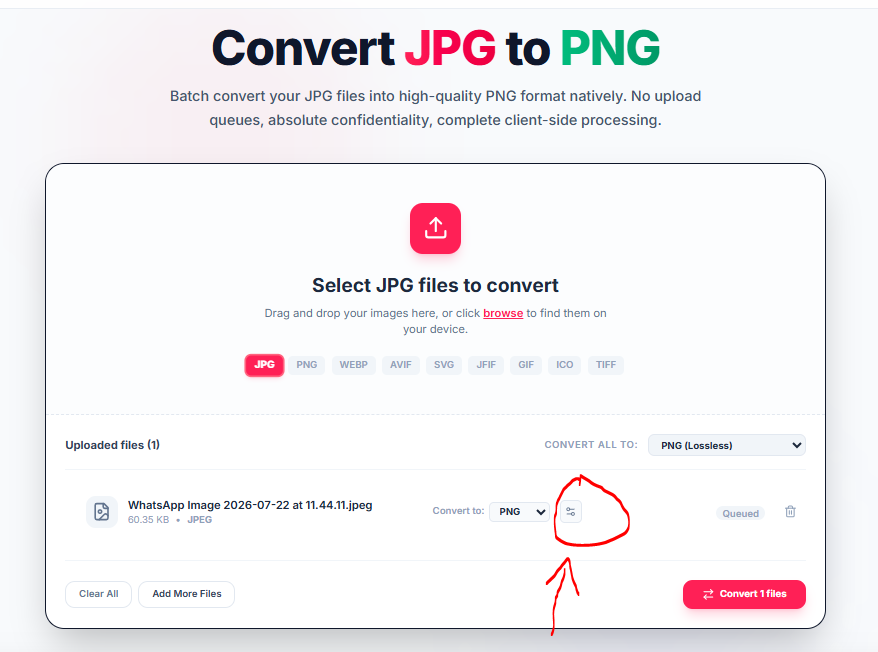
The file WhatsApp Image 2026-07-22 at 11.44.11.jpeg, 60.35 KB, landed in the queue instantly, no waiting on an upload bar. Next to each file, a small settings icon opens the Advanced Settings panel, which is where the tool earns its keep.
The Feature That Actually Matters: Quality Control
Most free converters give you exactly one option: convert. Ours gives you a Quality Level slider, running from "Extreme Compression" on one end to true "Lossless" on the other, with an "Optimal (Recommended)" zone in the middle.
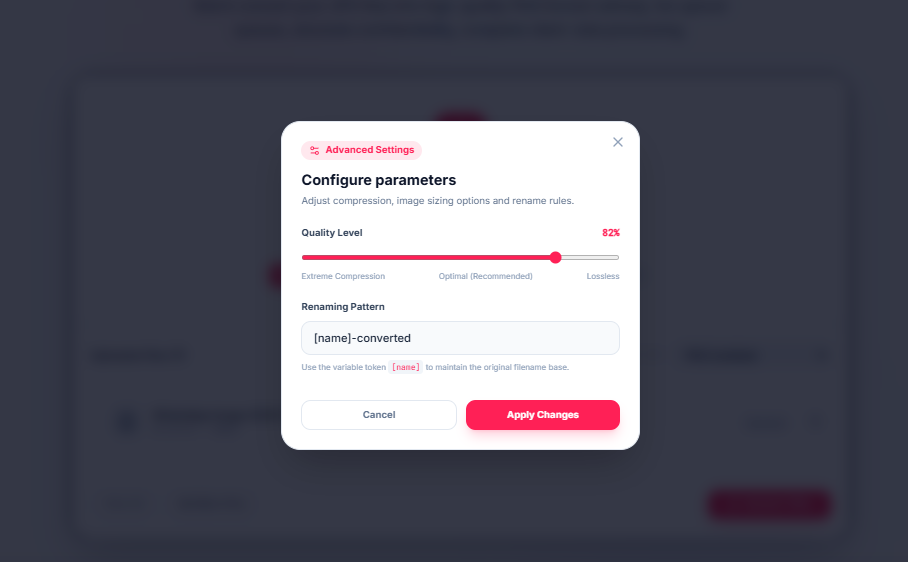
In practice, we've found:
- 80-85% is the sweet spot for most web use, visually indistinguishable from lossless, but noticeably lighter.
- Pushing toward Lossless makes sense only for master archival copies you plan to re-edit later, since PNG re-encoding at 100% avoids any generational quality loss.
- Dropping toward Extreme Compression is useful for thumbnails or preview grids where absolute sharpness doesn't matter.
The panel also includes a Renaming Pattern field (default: [name]-converted), which uses a [name] token to keep your original filename base while tagging the output. When you're converting a batch of twenty files at once, this alone saves you from a folder full of image (1).png, image (2).png chaos.
Batch Conversion: The Actual Time-Saver
This is where the tool separates itself from single-image converters. Instead of repeating the same drag-drop-download cycle file by file, you can queue an entire batch, apply one quality setting to all of them via the "Convert All To" dropdown, and export everything in one click with Convert Files.
Beyond JPG → PNG, the tool also recognizes PNG, WEBP, AVIF, SVG, JFIF, GIF, ICO, and TIFF as source formats, so the same interface covers most conversion needs you'll run into managing a website's media library.
Our Take: Who This Tool Is Actually For
Based on running this workflow ourselves:
- If you're cleaning up a media library (converting a batch of legacy JPGs into PNGs for icons, logos, or transparent overlays), the batch queue plus quality slider is genuinely faster than opening each file in an editor.
- If you're handling anything sensitive (client work, unreleased designs, personal photos), the fact that nothing touches a server is the deciding factor over any competitor.
- If you just need one quick conversion, it works exactly as fast as you'd expect: drop the file, hit convert, done.
Conversion Highlights
- No File Size Limits: Convert large high-resolution camera images without bandwidth capping.
- Zero Compression Artifacts: Export to lossless PNG to preserve crisp UI edges and graphics.
- Custom Filename Tokens: Prevent filename clashing with structured output names.
Advanced Control
Fine-tune the output quality from 0% (maximum storage reduction) to 100% (absolute lossless fidelity) using the per-file settings modal.
Files are converted purely in your browser's local sandbox via WebAssembly and Canvas. No images or metadata ever touch a cloud server.